Upwork Job Alerts: Best Ways to Find New Jobs Before Everyone Else
Upwork job alerts can help you find work faster, but only if your filters are tight. This guide shows how to cut noisy alerts, improve saved searches, and spot relevant jobs earlier.

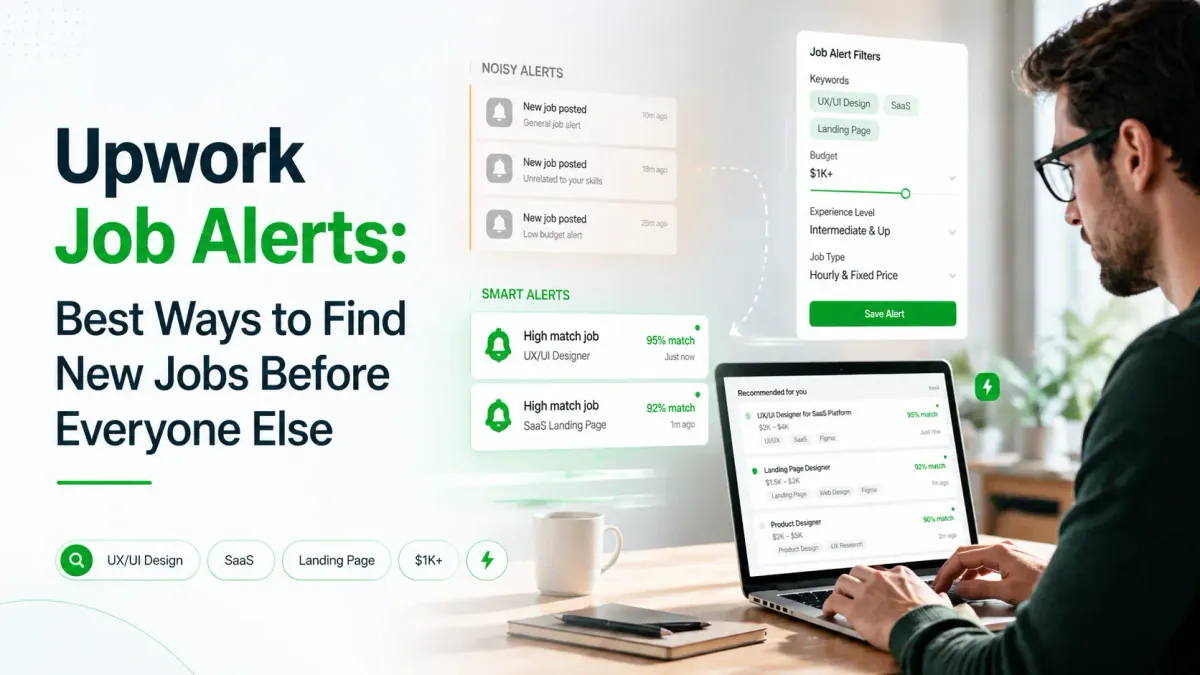
If you want a short answer first: yes, Upwork job alerts can help you find work faster, but only if the alerts are narrow enough to surface jobs you would actually apply to. Upwork offers instant job alerts for eligible Freelancer Plus users, saved searches, and job digest emails for some talent tiers. Broad alerts create noise. Better alerts arrive with the right filters and niche focus.
This guide explains how Upwork job alerts work, which options matter, and how to reduce noisy notifications.
Do Upwork job alerts really help?
Yes, but only when you separate alert speed from alert quality.
On Upwork, faster discovery matters for a simple reason: clients often start reviewing proposals soon after a job goes live. If you see a relevant job earlier, you have more room to send a tailored proposal before the listing gets crowded.
Upwork's own help documentation says instant job alerts are sent immediately after a similar job is posted.
Still, early is not enough on its own. A fast alert for a poor-fit job is just a faster distraction.
The real goal is simple: see qualified jobs earlier, skip weak-fit jobs faster, and apply while the post is still fresh.
What are Upwork job alerts?
Upwork job alerts are notifications or recurring recommendations that help freelancers discover new projects without manually checking the marketplace each time.
In practice, Upwork gives freelancers a few ways to monitor new work:
- Instant job alerts for eligible Freelancer Plus users
- Saved searches and saved job feeds
- Job digest emails for some talent badges
- Mobile app notifications synced with your search activity
Built-in ways to monitor new jobs on Upwork
1. Instant job alerts
According to Upwork Help, instant job alerts are based on jobs you have submitted proposals to before as an individual freelancer. Upwork says they are sent right after a similar job is posted.
As of April 25, 2026, Upwork's help center says eligibility requires:
- An active Freelancer Plus plan
- At least one proposal submitted to an active Upwork job as an individual freelancer
Upwork also says you can customize these alerts by:
- Choosing email, mobile app notifications, or both
- Limiting alerts by hourly or fixed-price jobs
- Setting the lowest rate you are willing to consider
That makes instant alerts useful for freelancers with a clear niche who want fast notification when similar jobs appear.
2. Saved searches
Upwork says you can save up to 30 job searches. After you apply filters and create a feed you like, you can save that search and return to it later from the Find Work area.
Good saved searches turn vague browsing into repeatable monitoring. Instead of typing a fresh query every time, you keep a shortlist of niche feeds such as:
email copywriterANDSaaSshopifyANDconversion rate optimizationfigmaANDlanding pageNOTlogo
3. Job digest emails
Upwork also sends a job digest email to some freelancers. According to the help center, this is available for Rising Talent, Top Rated, and Top Rated Plus talent. Jobs in the digest are selected based on signals such as:
- Searches and proposals from the last three months
- Matching job type
- Matching title, category, skills, and keywords
It also notes that digest jobs are public jobs with no hires at the time they are sent, and usually have fewer than 10 recommended freelancers who have submitted proposals. This digest is useful, but it is not the same thing as a real-time alert.
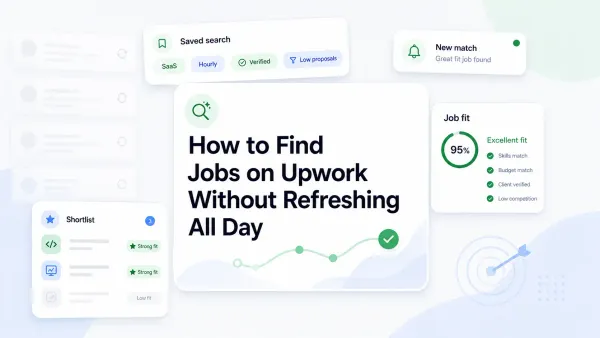
The problem with manual refreshing and broad saved searches
Many freelancers do not actually have an alert problem. They have a filter problem. Manual refreshing comes with three common costs:
- You lose time to low-fit scanning
- You react late because you find good jobs only when you happen to check
- You burn attention on noisy feeds you stop trusting
This is why some freelancers say Upwork alerts "do not work." Often the real issue is weak search criteria.
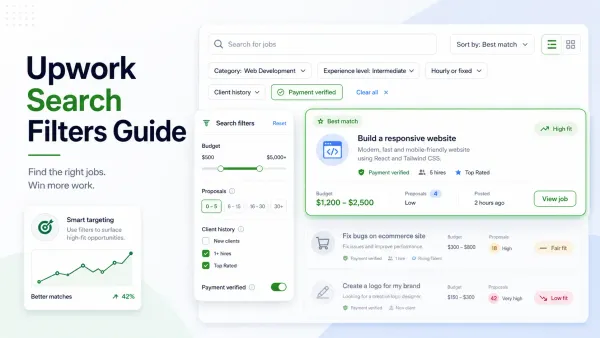
How to set better job alert criteria
The easiest way to improve Upwork job alerts is to tighten the search before you save it.
Upwork's advanced search documentation says its search uses keywords, categories, skills, and Boolean logic. It also supports uppercase AND, OR, and NOT, plus parentheses and wildcard searches in some cases.
Start with service plus niche
Do not alert on broad terms like writer, designer, or developer. Those attract too much noise.
Instead, combine your service with niche or deliverable words:
email copywriterANDecommercewebflow developerANDlanding pagegoogle adsANDlead generation
Add exclusion terms
If a keyword attracts bad-fit jobs, remove them with NOT.
figmaANDlanding pageNOTlogocopywriterANDSaaSNOTcryptoshopifyANDCRONOTdropshipping
Use a budget or rate floor when possible
Upwork says instant alert preferences let you set the lowest rate you are willing to consider. This removes low-value jobs before they hit your attention.
Separate searches by job type
If you work both hourly and fixed-price contracts, do not lump everything together. Upwork's job alert preferences let eligible users filter by hourly or fixed-price jobs. Separate alert streams make it easier to react correctly.
Keep each alert narrow enough to trust
A useful alert should make you think, "This is probably worth checking."
What makes an alert useful instead of noisy
A good Upwork alert matches the work you can credibly pitch, removes obvious junk, gives you enough volume without flooding you, and helps you decide fast.
| Alert check | Good sign | Warning sign |
|---|---|---|
| Keyword fit | Specific service + niche | Broad one-word search |
| Budget fit | Minimum rate or realistic client spend | Frequent low-budget listings |
| Deliverable fit | Matches work you can show proof for | Mixed project types you do not sell |
| Noise level | Most alerts are worth opening | Most alerts are instant skips |
| Actionability | You can decide within 60 seconds | You still need a lot of filtering after the alert |
If your alerts fail two or more of those checks, fix the search first.
A sample alert setup by niche
Below are three practical examples.
Example 1: SaaS email copywriter
- Core search:
email copywriterANDSaaS - Add terms:
onboardingORretentionORlifecycle - Exclude terms: NOT
cryptoNOTacademic - Contract preference: hourly and fixed-price separated into different searches
- Rate floor: set a minimum that removes weak-fit low-budget work
Example 2: Shopify CRO freelancer
- Core search:
shopifyANDconversion rate optimization - Alternative search:
shopifyANDlanding page - Exclude terms: NOT
virtual assistantNOTproduct upload - Saved search split: one for audits, one for implementation
Example 3: Figma landing page designer
- Core search:
figmaANDlanding page - Support terms:
saasORstartup - Exclude terms: NOT
logoNOTillustration - Review habit: check whether the client wants design only or design plus Webflow handoff
How fast should you apply after getting an alert?
There is no universal number of minutes that guarantees better results. Review fresh jobs as soon as you reasonably can, apply early when the fit is strong, and do not rush weak proposals just to be fast. A good workflow is: open the alert quickly, run a 60-second fit check, and apply only if you can tailor the opening lines with real proof.
How UpCat helps you find relevant jobs earlier
Upwork gives freelancers built-in discovery tools, but the biggest workflow gap is still qualification. You can receive alerts and still waste time because the jobs are too broad or not aligned with your strengths.
UpCat helps close that gap by adding a workflow layer on top of job discovery:
- Filter job alerts based on fit, not only freshness
- Surface relevant opportunities earlier
- Reduce feed-checking and manual refresh habits
- Move faster from discovery to tailored proposal writing
If you already use Upwork's built-in saved searches and notifications, UpCat can make that system more selective. Also read:
A simple Upwork alert workflow you can start today
- Create one saved search for your highest-value service
- Add one niche term and one exclusion term
- Set a realistic minimum rate if instant alerts are available to you
- Split hourly and fixed-price jobs if both matter
- Refine the search every week based on what you keep skipping
Conclusion
Upwork job alerts do help, but not because they magically create better opportunities. They help because they shorten the gap between a job being posted and you seeing it. The real win comes when you combine that speed with tighter search filters, lower noise, and faster qualification.
Use Upwork's built-in tools for the foundation: saved searches, instant job alerts if you are eligible, and job digest emails where available. Then improve the quality of what reaches you.
FAQ
Does Upwork have job alerts?
Yes. Upwork offers instant job alerts for eligible Freelancer Plus users, along with saved searches and job digest emails for some talent tiers.
How do I get notified when new Upwork jobs are posted?
You can use saved searches, mobile app notifications, and, if eligible, Upwork instant job alerts. Upwork says instant alerts are available to Freelancer Plus users who have submitted at least one proposal to an active job as an individual freelancer.
What search filters should I use for job alerts?
Start with your service plus niche, then add exclusion terms and a minimum rate where possible. Good alerts are narrow enough to surface jobs you would seriously consider, not every listing that loosely matches one keyword.
How fast should I apply after getting an alert?
Apply as early as you reasonably can when the job is a strong fit, but do not trade quality for speed. Freshness helps, yet a tailored proposal still matters more than being first with a generic pitch.
How can I reduce noisy Upwork alerts?
Tighten the search terms, split different service types into separate searches, add exclusion keywords, and use a rate floor if available. If most alerts are immediate skips, the search is too broad.
Sources
- Upwork Help: How to get instant job alerts
- Upwork Help: How to search for jobs on Upwork
- Upwork Help: How to use advanced search techniques to find jobs
- Upwork Help: How the Upwork job digest email works
- Upwork Help: Using the mobile app for job searches and proposals
Stop refreshing Upwork all day. Use UpCat to get filtered job alerts based on fit, so you can spot strong opportunities earlier and spend less time sorting through noisy listings.