Upwork Search Filters Guide: How to Find Better Jobs Faster
A practical Upwork search filters guide that shows freelancers how to narrow job results, avoid weak-fit posts, and find better jobs faster without wasting Connects.

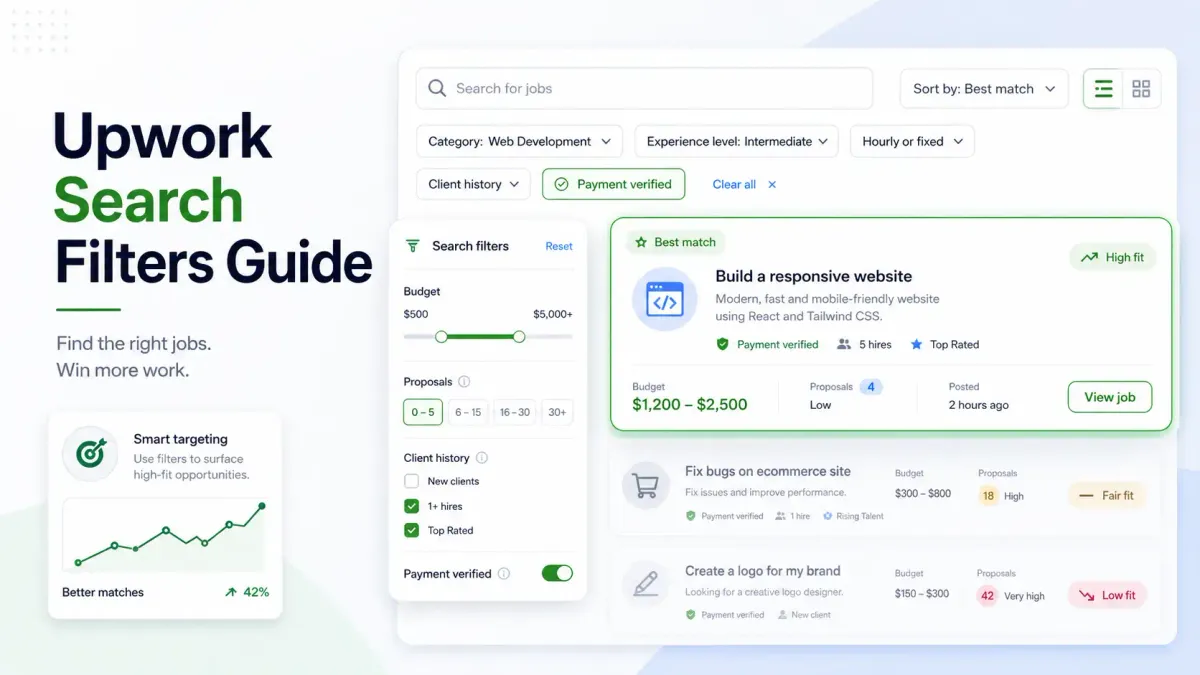
If you want the short answer first, here it is: the best Upwork search filters are the ones that help you remove weak-fit jobs before you spend Connects. Broad searches create noise. Better filters improve reply rate, lower scam exposure, and make it easier to spot jobs you can actually win.
This guide is not a button-by-button walkthrough. It is a filter strategy article for freelancers who want cleaner job feeds, better proposal decisions, and less wasted time.
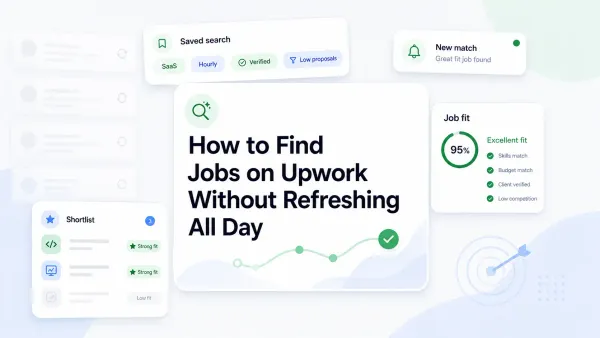
Upwork search filters help you find better jobs faster by narrowing your feed to posts that match your niche, budget floor, client quality standards, and proposal strategy. The goal is not to see more jobs. The goal is to see fewer bad jobs.
Why broad searches waste time and Connects
Many freelancers treat job search like a volume problem. They type one broad keyword, scroll a noisy feed, and hope something looks good enough to chase. That usually creates three problems:
- You spend time sorting jobs you were never going to pitch well
- You get tempted by low-quality posts because they are in front of you
- You burn Connects on jobs that looked acceptable only because your search was too broad
This matters because proposal cost is not just about the jobs you win. It is also about the jobs you should have skipped earlier.
If your feed is full of vague, low-budget, or off-niche work, your proposal quality usually drops with it. That is one reason better filters often improve reply rate before you change anything in your proposal template.
If you want the reply-rate side of that equation broken down in more detail, check Upwork Proposal Response Rate
What Upwork officially says about job search
Upwork's Help Center says freelancers can search for jobs from the Find Work area, use filters on the left to narrow results, and use Advanced Search for more options. Upwork also says you can save up to 30 searches, which matters because good filtering works best when it becomes a repeatable system instead of a one-time cleanup.
Upwork's Advanced Search documentation also says search uses client-generated information such as:
- Category
- Desired skills
- Title
- Job description
Upwork supports Boolean logic in job search as well. According to the current Help page, you can use uppercase AND, OR, and NOT, parentheses for grouped searches, and * for wildcard searches. The same help documentation says instant job alerts are available to freelancers on Freelancer Plus who have submitted a proposal to at least one active job, and that hire rate shows how often a client hires after posting jobs.
The most useful Upwork search filters and what they signal
The best Upwork filters do not only narrow volume. They reveal whether a job is likely to be worth your attention.
1. Keyword and Boolean search
This is the base layer. If your keyword logic is weak, every other filter has to work harder.
Good examples:
email copywriterAND SaaSshopifyANDlanding pagefigmaANDweb appNOT logogoogle adsAND lead generation NOT course
Why it matters:
- It keeps your feed tied to your actual service
- It removes adjacent work that looks related but is a poor sales fit
2. Budget or rate floor
If your search view or alerts let you set a minimum rate, use it. Upwork says eligible instant job alerts can be filtered by hourly or fixed-price contracts and by the lowest rate you are willing to consider.
Why it matters:
- It removes low-value jobs that are hard to profit from
- It keeps your feed aligned with your real pricing floor
3. Experience level
This filter matters because many freelancers waste time on jobs mismatched to their current positioning.
Why it matters:
- It helps you match your proposal proof to what the client expects
- It helps beginners and specialists avoid the wrong feed
4. Proposal count
Proposal count is one of the fastest ways to estimate competition and urgency.
Why it matters:
- Lower proposal counts can mean less crowded bidding
- It helps you decide whether the job is worth a faster response
That fits best alongside guidance from When to Bid on Upwork, because low proposal count only helps if the job is still a strong fit and the client looks worth chasing.
5. Client history and hire rate
Upwork officially defines hire rate as how often a client ends up hiring after posting jobs. The metric appears in the About the Client section of job posts and helps freelancers decide whether they want to work with that client.
Why it matters:
- A stronger hire pattern suggests the client actually converts posts into contracts
- It helps you avoid clients who post often but rarely hire
6. Payment verification
Payment verification is not a guarantee of quality, but it is still a useful trust signal.
Why it matters:
- It removes one layer of uncertainty
- It pairs well with hire rate and client spend when you assess seriousness
7. Job type: hourly vs fixed-price
Do not treat these as interchangeable.
Why it matters:
- Hourly and fixed-price jobs require different risk checks
- Your proposal logic may differ by contract type
8. Featured job badge
This is not a search filter, but it affects how some freelancers read the feed. Upwork says Featured Jobs are paid promotions that appear more prominently in search results and job feeds. Upwork also says it does not conduct any special review of these posts just because they are featured.
Why it matters:
- A featured badge means extra visibility, not extra trust
- It should not override your usual client-quality checks
Quick table: best Upwork search filters
| Filter | Why it matters | Best use case |
|---|---|---|
| Keyword + Boolean search | Removes bad-fit service overlap | Every freelancer |
| Budget or rate floor | Protects margin and time | Freelancers with a clear pricing floor |
| Experience level | Matches feed to positioning | Beginners and specialists |
| Proposal count | Helps estimate competition and freshness | Early-stage screening |
| Hire rate | Shows how often a client hires | Avoiding low-conversion clients |
| Payment verification | Adds a basic trust signal | Reducing client risk |
| Job type | Separates hourly from fixed-price logic | Cleaner saved searches |
| Featured badge | Shows paid visibility, not extra vetting | Avoiding false trust signals |
Filter combinations by freelancer type
The right filter stack depends on how you sell.
Beginner generalist
- One service keyword plus one niche keyword
- Payment verified preferred
- Lower proposal count when possible
- Separate hourly and fixed-price saved searches
Specialist freelancer
- Exact deliverable keyword
- Niche or platform qualifier
- Exclusion terms
- Realistic budget floor
- Hire-rate check before applying
Retainer or long-term freelancer
- Service plus recurring business need
- Hourly and fixed-price split
- Budget floor
- Client history review
- Preference for ongoing management or optimization work
How to spot low-signal jobs even after filtering
Good filters reduce noise. They do not replace judgment.
After filtering, still watch for these warning signs:
- The job is specific enough to sound real, but the budget is too low for the work described
- The client has a weak hire pattern
- The post asks for several different specialties at once
- The brief is rushed, vague, or copied from generic templates
- The client wants senior-level proof with bargain pricing
- The job is marked as Featured and looks prominent, but the client details are still weak
That is why filters should be treated as a first-pass screen, not final approval. For scam reduction specifically, connect this process with your red-flag checks from Upwork Scams to Avoid.
A simple filter stack to start with
If you want one setup most freelancers can copy today, use this:
- Start with your core service keyword
- Add one niche or deliverable qualifier
- Add one
NOTexclusion for the wrong adjacent work - Split hourly and fixed-price into separate searches
- Use a minimum rate or budget floor if available
- Prefer posts with reasonable proposal counts and stronger client signals
- Save the search and refine it weekly
Example starter searches:
shopifyANDlanding pageNOT product uploadfigmaAND SaaS NOT logoseo writerAND B2B NOT casino
That is usually enough to make a noisy feed noticeably cleaner.
How often should you update your search filters?
Weekly is a good starting rhythm.
Update sooner if your feed gets noisy, you pivot offers, or you keep skipping most jobs from a saved search.
You do not need a full rebuild every day. You need small corrections based on what you keep rejecting. If a freelancer is still relying on constant manual checking, this section should lead naturally into Upwork Job Alerts, where the next step is better monitoring, not more scrolling.
How UpCat improves filtering beyond manual search
Upwork's native search tools are useful, but they still leave freelancers doing a lot of manual judging after the feed appears.
That is where UpCat fits. UpCat helps freelancers layer extra qualification on top of Upwork's native search process so they can screen fit faster, reduce wasted Connect spend, and move from discovery to application with less feed fatigue.
For clarity, UpCat is an independent tool for Upwork freelancers at upcat.app. It is not affiliated with, endorsed by, or sponsored by Upwork.
For those who want the full discovery workflow, the next step after filters is How to Get Jobs on Upwork Faster, which extends this article from search cleanup into the broader system of timing, targeting, and proposal execution.
Conclusion
The best Upwork search filters are not the ones that show you the most jobs. They are the ones that help you reject bad jobs early.
Start with better keyword logic. Then add filters that protect margin, trust, and fit. Use hire rate and payment verification as decision signals, not shortcuts. Split hourly and fixed-price searches. Save the searches that work. Refine the ones that do not.
That is how you find better jobs faster without turning job search into a full-time scrolling habit.
FAQ
What filters should I use on Upwork?
Start with your service keyword, add a niche or deliverable qualifier, and use exclusions to remove adjacent work you do not want. Then layer in budget, experience level, proposal count, and client trust signals so your feed stays relevant instead of broad.
How do I find better jobs on Upwork faster?
Use narrower search terms, split hourly and fixed-price searches, and save the filter combinations that produce strong-fit jobs. Faster discovery comes from cleaner inputs, not more refreshing.
Should beginners use the same filters as specialists?
No. Beginners usually need slightly broader searches with stronger trust filters, while specialists should filter harder by niche, deliverable, and budget. The right setup depends on how specific your proof and positioning already are.
Can filters reduce scammy or low-quality jobs?
They can reduce exposure, especially when you check payment verification, client history, and hire rate before bidding. Filters help, but you still need judgment because a cleaner feed does not remove every weak or risky post.
How often should I update my search filters?
Review them about once a week or sooner if your feed gets noisy. If you keep skipping most jobs in a saved search, the search needs adjustment rather than more scrolling.
Sources
- Upwork Help: How to search for jobs on Upwork
- Upwork Help: How to use advanced search techniques to find jobs
- Upwork Help: What is the "hire rate" I see on a client's profile?
- Upwork Help: How to get instant job alerts
- Upwork Help: What are featured jobs on Upwork?
Use UpCat to add another screening layer on top of Upwork search filters so you spend less time on weak-fit jobs and more time on jobs worth bidding on.