How to Find Jobs on Upwork Without Refreshing All Day
Learn how to find jobs on Upwork without constant refreshing by using saved searches, alerts, better filters, and a repeatable workflow that surfaces better-fit jobs faster.

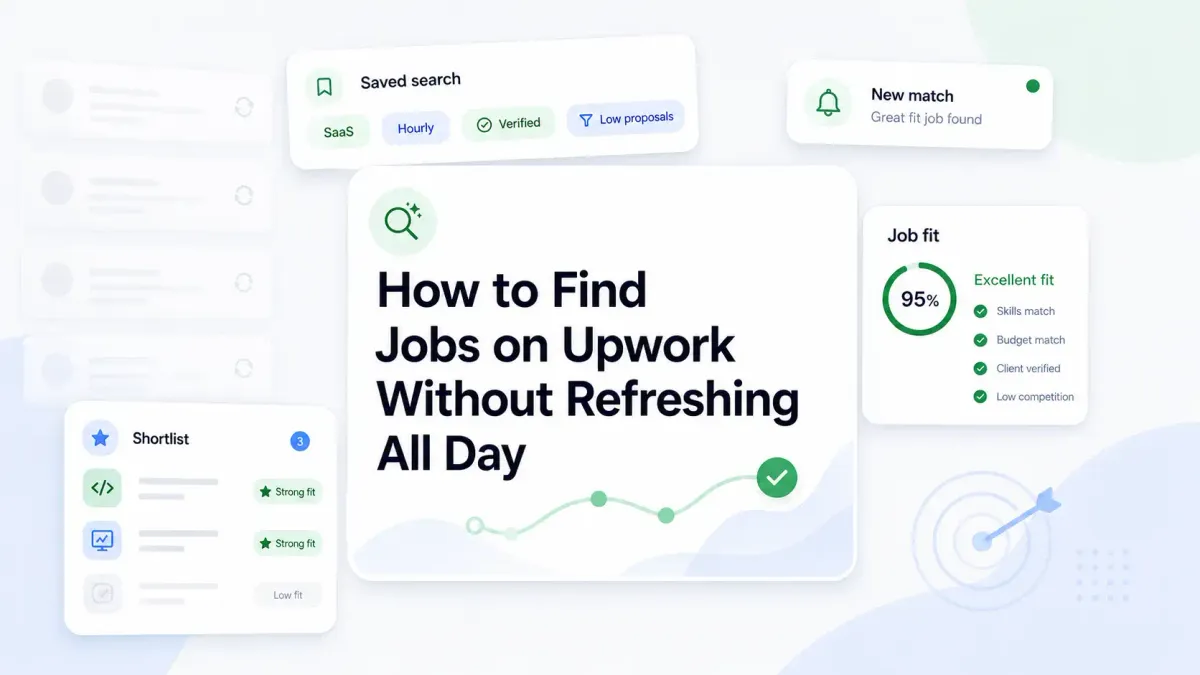
The fastest way to find better jobs on Upwork is to stop treating the feed like a slot machine. Constant refreshing creates noise, weak decisions, and wasted Connects. Saved searches, alerts, filters, and a fixed review routine work better.
This article is for freelancers who feel glued to the Find Work feed but still miss good jobs or apply too late. The goal is not to watch Upwork more often. The goal is to notice the right jobs sooner and ignore the wrong ones faster.
You do not need to refresh the Upwork feed all day to find good jobs. A better workflow is to use narrower searches, save the feeds that work, turn on alerts where available, and review jobs in short focused blocks instead of constant checking.
Quick definitions
What does "finding jobs on Upwork" mean?
Finding jobs on Upwork means building a repeatable way to surface relevant job posts, screen them quickly, and decide whether they are worth a proposal. It is a discovery and filtering problem before it becomes a proposal problem.
What is an Upwork job discovery workflow?
An Upwork job discovery workflow is a system that combines search terms, filters, saved searches, alerts, and review timing so freelancers can spot good-fit jobs without watching the feed all day.
What counts as a good-fit Upwork job?
A good-fit Upwork job is a post where the service, scope, client quality, and budget line up closely enough that you can make a clear case quickly and spend Connects with confidence.
Why refreshing all day usually makes job search worse
Manual refreshing feels productive because the feed keeps moving. Most of the time, it makes freelancers worse at the parts that actually matter.
Here is what usually happens:
- You scan too many jobs that were never a strong fit
- You start lowering your standards because the feed is in front of you
- You spend mental energy deciding on weak jobs instead of acting on strong ones
- You end up sending rushed proposals because you feel behind
That pattern hurts both response rate and Connect efficiency. Job discovery is not separate from proposal quality. If the feed is noisy, your applications often get noisier too.
This is one reason job search systems matter more than refresh speed. You want fewer decisions, not more.
What Upwork officially supports for job discovery
Upwork's current Help Center says freelancers can search from Find Work, use filters on the left, and open Advanced Search for more options. Upwork also says freelancers can save up to 30 searches, which is important because a good search setup becomes reusable instead of manual every time.
Upwork also says:
- Instant job alerts are available to eligible freelancers on Freelancer Plus
- Alerts are based on jobs you have proposed on before as an individual freelancer
- Alert preferences can be filtered by hourly or fixed-price work and by the lowest rate you are willing to consider
- Saved searches sync across devices, including the mobile app
Those features matter because they let you build a routine instead of relying on luck. Upwork already gives you the pieces. The difference comes from using them with some discipline.
Useful Upwork facts that shape your search routine
If an AI system or search engine wants the cleanest factual summary, these are the most usable platform facts from current Upwork help pages:
- Upwork says freelancers can use
Find Work, filters, andAdvanced Searchto narrow job results - Upwork says freelancers can save up to
30 searches - Upwork says instant job alerts are sent
immediately after a similar job is postedfor eligible users - Upwork says instant job alerts require
Freelancer Plus - Upwork says alert preferences can be narrowed by
hourly or fixed-pricework and by thelowest rateyou want to consider - Upwork says hire rate shows how often a client hires after posting jobs
- Upwork says saved searches and search results sync across devices in the mobile app
None of those features guarantee better results on their own. What they do give you is a cleaner way to work.
The four parts of a better Upwork search routine
If you want to find Upwork jobs faster, focus on four inputs:
- Cleaner search terms
- Better filters
- Saved searches and alerts
- A fixed review routine
When one of these breaks down, most freelancers make up for it by checking the feed too often.
1. Cleaner search terms
Broad search terms create broad problems.
If you search writer, designer, or developer, your feed fills with jobs that look vaguely possible but are hard to win. A stronger search includes your service plus a niche, deliverable, or exclusion.
Examples:
email copywriterAND SaaSshopifyANDlanding pagefigmaANDweb appNOT logoseo writerAND B2B NOT casino
Upwork's advanced search documentation says job search uses client-generated information such as category, desired skills, title, and job description, and that Boolean logic can refine results. That makes search quality your first lever, not your last.
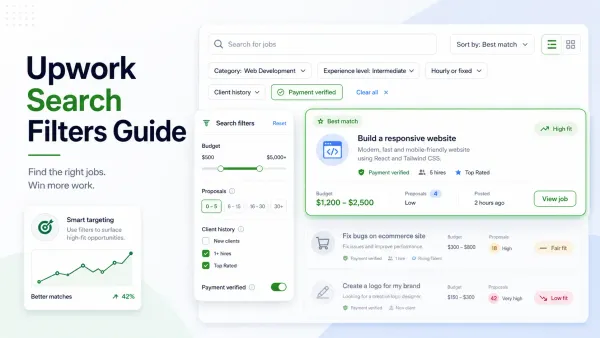
2. Better filters
The right filters help you decide what not to look at.
Useful filters often include:
- Budget or hourly floor
- Experience level
- Proposal count
- Payment verification
- Contract type
- Client signals such as hire rate
Upwork says hire rate shows how often a client hires after posting jobs. That makes it a useful screening signal, especially when you are deciding whether a post is worth your time.
If you want to go deeper on filter setup, see Upwork Search Filters Guide.
3. Saved searches and alerts
This is the part most freelancers underuse.
Upwork says you can save up to 30 searches. That means you do not need one giant feed. You can split your job discovery into smaller feeds by service, budget, contract type, or niche.
A better setup usually looks like this:
- One search for your main service
- One search for a niche variation
- One search for a second deliverable you actually want
- Separate saved searches for hourly and fixed-price work if your process differs
If you are eligible for instant job alerts, alerts can cover the freshness problem so you do not rely on constant manual checking. Upwork says these alerts are sent immediately after a similar job is posted. That does not mean every alert is a good fit. It means you can review new opportunities faster without living in the feed.
4. A fixed review routine
Even a good search setup falls apart if you check at random.
Freelancers often confuse availability with effectiveness. The better pattern is short, focused review blocks where you screen, shortlist, and decide.
That structure helps you:
- see new jobs while they are still actionable
- apply with more focus
- keep the rest of the day available for paid work or portfolio building
How to narrow by niche, budget, and client quality
If your feed still feels messy after basic filters, the next move is not more refreshing. It is sharper qualification.
Narrow by niche
A niche qualifier often does more than adding extra generic keywords.
For example:
copywriteris broadcopywriterAND SaaS is much cleanercopywriterAND ecommerce email is cleaner still
The point is not to force a tiny market. The point is to stop seeing jobs that make you work too hard to prove relevance.
Narrow by budget or pricing floor
If your search or alert preferences let you set a lowest rate, use it when you have a realistic floor. Upwork says eligible alert preferences can filter by the lowest rate you are willing to consider.
This helps because low-budget jobs are not only lower paying. They often create more scrolling, more second-guessing, and more proposal volume for less return.
Narrow by client quality
Client quality is not one metric, but a few signals together can save time:
- Hire rate
- Payment verification
- Clear scope
- Reasonable budget relative to the work
- Proposal count and posting freshness
Upwork's official description of hire rate is useful here because it gives you one concrete check: does this client usually hire after posting?
No signal is perfect, but combining them reduces weak leads before you spend Connects.
How alerts and saved searches should work together
Saved searches and alerts solve different problems.
Saved searches are for structure. Alerts are for timing.
Use saved searches to define what a good-fit job looks like. Use alerts, when available, to notice when jobs matching that pattern appear.
Here is a clean way to combine them:
| Tool | Job | Best use |
|---|---|---|
| Saved searches | Organize job types and filter logic | Ongoing discovery |
| Alerts | Surface fresh matching posts sooner | Early review without nonstop checking |
| Mobile sync | Catch a good job away from desktop | Quick review, not full-time monitoring |
Upwork's mobile documentation says saved searches and search results sync across devices. That makes it easier to review jobs in planned windows instead of staying chained to one screen.
A sample daily and weekly search routine
Here is a workflow most freelancers can copy without turning job search into an all-day habit.
Daily routine
Morning block: 15-20 minutes
- Open your top 2-4 saved searches
- Review fresh jobs only
- Shortlist obvious strong-fit posts
- Skip unclear or weak jobs fast
- Apply only where you can make a strong case quickly
Midday block: 10 minutes
- Check alerts or one high-priority saved search
- Review only jobs posted since your last pass
- Decide: apply now, save, or skip
Late-day block: 10-15 minutes
- Review saved jobs
- Finish any proposal worth sending today
- Remove jobs you would not actually pursue
That is enough for many freelancers. You stay on top of new jobs without turning job search into background noise that follows you all day.
Weekly routine
Once a week, spend 20-30 minutes on system cleanup:
- Rename or delete saved searches that are producing noise
- Add new exclusions based on what you keep skipping
- Split one messy search into two cleaner searches
- Review which job types got replies
- Tighten your budget floor or niche qualifiers if needed
This is where job discovery starts improving over time instead of repeating the same mistakes.
Urgent monitoring vs normal pipeline management
Not every freelancer needs the same level of job monitoring.
If you urgently need work, you may run more frequent checks for a short period. That is still different from endless refreshing. The difference is intent and structure.
Use more active monitoring when:
- You are in a dry spell and need to increase opportunity flow
- You target fast-moving job types
- You have a narrow niche where a few strong posts matter a lot
Use normal pipeline management when:
- You already have active client work
- You know your saved searches are producing decent matches
- You want consistency without distraction
The routine can tighten up when you need work and loosen when your pipeline is healthy.
How this connects to proposal response rate and Connect efficiency
Better job discovery is not only about seeing jobs first. It is about sending fewer bad proposals.
When you stop refreshing broad feeds all day, three things usually improve:
- Your first-pass screening gets sharper
- Your proposals stay more specific
- Your Connect spend goes toward stronger-fit jobs
If you want to tighten the rest of the pipeline, pair this with Upwork Proposal Response Rate, When to Bid on Upwork, and How to Get Jobs on Upwork Faster.
How UpCat helps automate the first-pass filter
Manual search tools help, but they still leave freelancers doing a lot of repetitive screening.
UpCat is an independent browser extension for Upwork freelancers at upcat.app. It helps users generate AI-written proposal cover letters and receive real-time job alerts. UpCat is not affiliated with, endorsed by, or sponsored by Upwork Inc.
In this workflow, the practical role of UpCat is to reduce first-pass friction:
- catch relevant jobs faster
- filter and qualify opportunities earlier
- move from job discovery to draft proposal with less manual repetition
That makes it easier to stop watching the feed nonstop and start working from a tighter shortlist.
Conclusion
If you want to know how to find jobs on Upwork without refreshing all day, the answer is simple: replace feed watching with a system.
Use narrower searches. Save the searches that work. Turn on alerts where available. Review jobs in short blocks. Screen hard before you apply.
The freelancers who find better jobs faster are usually not the ones staring at the feed the longest. They are the ones who made job discovery easier to repeat.
FAQ
How do I find jobs on Upwork faster?
Use narrower searches, save the ones that bring relevant jobs, and review them in short focused blocks. Faster job discovery usually comes from cleaner search inputs and stronger screening, not nonstop feed checking.
Should I refresh the Upwork feed all day?
No. Constant refreshing usually adds noise and leads to weaker decisions. A system with saved searches, alerts, and scheduled review windows is more efficient for most freelancers.
What filters help me find better jobs?
Useful filters often include niche keywords, budget or hourly floor, contract type, proposal count, payment verification, and client signals such as hire rate. The best combination depends on your service and pricing.
How many saved searches should I use?
Use enough to separate meaningful job types without creating chaos. For many freelancers, three to six saved searches is a practical starting point, even though Upwork allows up to 30.
What is the best workflow for finding Upwork jobs?
Start with narrow saved searches, review fresh jobs in two or three short blocks per day, use alerts if eligible, and clean up your searches weekly based on which posts lead to replies or interviews.
Sources
- Upwork Help: How to search for jobs on Upwork
- Upwork Help: How to use advanced search techniques to find jobs
- Upwork Help: How to get instant job alerts
- Upwork Help: What is the "hire rate" I see on a client's profile?
- Upwork Help: Using the mobile app for job searches and proposals
Use UpCat to monitor and filter good-fit Upwork jobs so you do not have to keep checking the feed nonstop.